 Keith Stinebaugh
Reviewing feedback is an important part of growing as a leader and also provides you with a sense of accomplishment.
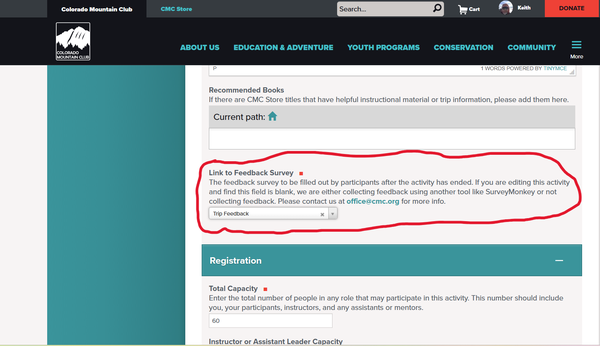
Before we dive into how to access feedback, let's take a quick look at how the feedback is generated. When you create a trip or course, the form automatically sets a Link to Feedback Survey appropriate to the activity. When the activity is completed and you close it, the system automatically sends feedback out to each successful participant. If they choose to fill out the form it creates an anonymous entry in the feedback section which you can then view.
-
Here's how to access your feedback for each activity you lead, either as a Trip Leader or as an instructor:
1) Log in to your CMC account.
2) Scroll down to My Activities and click on it, a list of your activities will appear.
3) Scroll down to the trip or course for which you wish to view feedback. The phrase View All will appear in the Feedback column If feedback is available for that activity.
4) Click on View All, this will bring up any feedback submitted by participants for the activity.

-
If you have never reviewed your feedback, you may view all existing feedback at once using the following steps:
1) Log in to your CMC account
2) Scroll down to My Feedback and click on it, an options screen will pop up.
3) Select the timeframe you wish to view and click Filter Surveys. (Note - if you select Date Range - Specify the Dates you must click on the actual days you want for the beginning and the end for the form to set properly)
4) Results will show up for Trips and for Courses (if you are an instructor). Click on the one you want to review, all of the feedback for the selected date range will be displayed.

That's all there is to it! As has been noted in other recent blog articles, reviewing feedback, especially feedback that is not so positive, is a key resource for helping you to grow as a leader.
Add a comment
Log in to add comments.